
Flutter Virtual Try-On: Seamless Integration for Android and Beyond
Build once, try-on everywhere. Learn how our Flutter plugin brings high-performance VTON to cross-platform commerce apps.
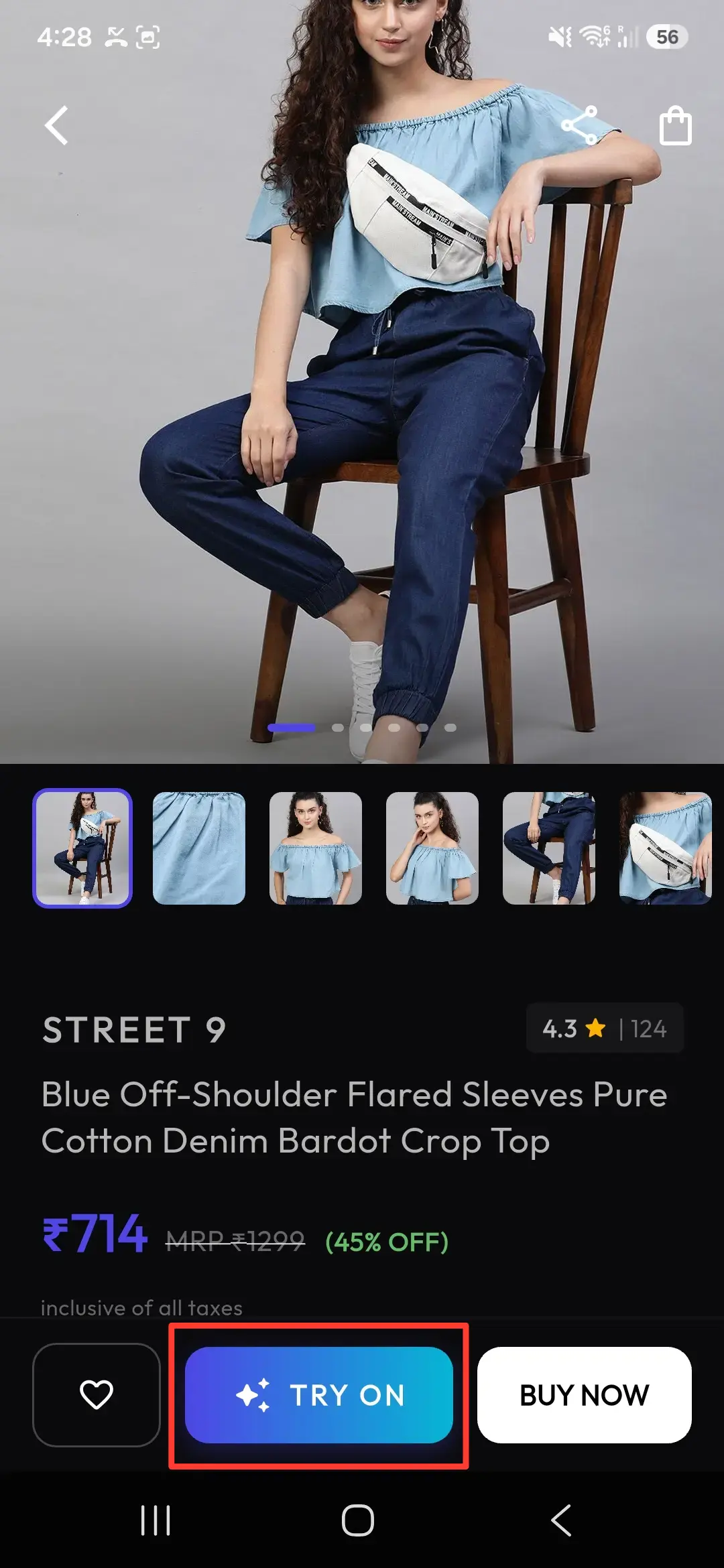
Flutter has become the go-to framework for direct-to-consumer (D2C) brands looking for rapid development and UI consistency. Our newly updated Flutter plugin bridges the gap between high-level Dart code and low-level native vision APIs. It provides a single, high-performance widget and flow manager that handles the complex try-on logic on both Android and iOS.
The challenge with cross-platform AR and AI visual overlays is often performance. We solve this by using platform views that host the native SDKs directly, ensuring that the camera stream and ML inference run at native speeds while your app logic remains in Dart. This "best of both worlds" approach keeps your development velocity high without sacrificing UX.
Here is a complete step-by-step developer's guide on how to integrate the SnapIt Virtual Try-On SDK into your Flutter e-commerce application.
⚡ Integration in 3 Steps
1. Add the Dependency
Run the following command in your Flutter project root:
flutter pub add snapit_sdkOr manually add it to your project's pubspec.yaml under dependencies:
dependencies:
  snapit_sdk: ^1.0.0
2. Configure Platform Permissions
Since the SDK accesses the local device camera and photo library for the try-on flows, you must declare these permissions:
iOS Setup (ios/Runner/Info.plist)
Add the following entries inside your <dict> tag:
<key>NSCameraUsageDescription</key>
<string>This app requires access to the camera to take photos for your Virtual Try-On.</string>
<key>NSPhotoLibraryUsageDescription</key>
<string>This app requires access to the photo library to pick photos for your Virtual Try-On.</string>
Android Setup (android/app/src/main/AndroidManifest.xml)
Add the following permissions inside the <manifest> tag:
<uses-permission android:name="android.permission.CAMERA" />
<uses-permission android:name="android.permission.READ_EXTERNAL_STORAGE" />
<uses-permission android:name="android.permission.WRITE_EXTERNAL_STORAGE" />
3. Launch the Virtual Try-On Flow
Import the package and call SnapIT.launchTryOnFlow directly on your Product Detail Page (PDP):
import 'package:snapit_sdk/snapit_sdk.dart';

void openVirtualTryOn(BuildContext context, String garmentUrl, String skuId) {
  SnapIT.launchTryOnFlow(
    context: context,
    apiKey: "smd_live_YOUR_API_KEY",          // From your SMD console dashboard
    userId: "YOUR_DEVELOPER_USER_ID",         // Your account developer ID
    garmentImageUrl: garmentUrl,              // URL of the selected garment
    productId: skuId,                         // Optional SKU tracking
    externalUserId: "user_customer_99182",    // Optional customer tracking
    metadata: {                               // Optional custom payload
      "campaign": "summer_fest_2026",
      "gender": "female"
    },
    theme: SnapITTheme(
      primaryColor: const Color(0xFFFF3F6C),   // Vibrant brand color
      backgroundColor: const Color(0xFF09090B),// Obsidian dark mode background
      cardColor: const Color(0xFF18181B),      // Zinc surface containers
      textColor: Colors.white,
      borderRadius: 12.0,
      fontFamily: 'Outfit',
    ),
    onSuccess: (resultImageUrl, generationId) {
      print("Try-On Completed! Result URL: $resultImageUrl");
      // Display the fitted garment preview or trigger a custom add-to-cart callback
    },
    onFailure: (errorMessage) {
      print("Try-On Failed: $errorMessage");
    },
  );
}
🎨 Theme Customization Matrix
The SnapITTheme configuration allows full compatibility with your corporate design guidelines:
| Parameter | Type | Default Value | Description |
|---|---|---|---|
primaryColor | Color | Color(0xFFD4FF00) (Acid Lemon) | Highlight/action button colors & slider accent |
backgroundColor | Color | Color(0xFF09090B) (Obsidian) | Background of the bottom sheet overlay / screens |
cardColor | Color | Color(0xFF18181B) (Zinc-900) | Containers / Card surfaces inside the SDK sheets |
textColor | Color | Colors.white | Default title and labels text color |
fontFamily | String | System default | Custom typeface injected by your host application |
borderRadius | double | 16.0 | Corner roundness of buttons and dialog frames |
💡 Best Practices for Production
Tip
Important
onFailure callback to handle cases where network latency is high or key validation fails, ensuring shoppers always have a clear fallback path back to the checkout flow.Whether you're building a brand new e-commerce application or adding immersive try-on features to an existing setup, our Flutter plugin delivers native-speed performance with maximum developer simplicity.

